Unlock Gaming Insights with Microsoft Edge Game Assist
Game Assist: A Game-Changing Browser Overlay
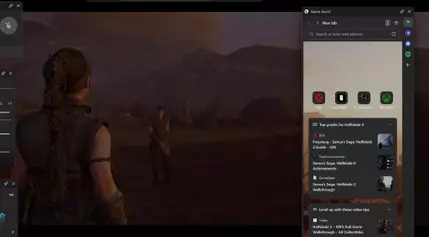
Edge Game Assist is now available to beta testers, offering a unique in-game browser overlay powered by Microsoft Edge. It lives within the Microsoft Game Bar and automatically surfaces tips and tricks for the game you're playing. By using the Edge browser, it provides easy access to relevant information.
For example, when you're immersed in a game like Baldur's Gate 3, Diablo IV, or Hellblade II: Senua's Saga, Game Assist can automatically show you links to helpful guides and tips. This saves you the hassle of having to search for information outside of the game.
Accessing Your Data with Ease
Game Assist utilizes the profile you're logged into in Edge, granting you access to your data such as cookies, autofill, and favorites. This means you don't need to log into sites again, providing a seamless and convenient experience.
Just like other Game Bar widgets, you can pin Game Assist above your game as you play, ensuring that the useful information is always within reach. It's a small but significant feature that enhances the gaming experience.
Getting Started with Game Assist
To start using Game Assist, make sure your Windows 11 and Game Bar are up to date. Game Assist requires the Beta or Preview channel of Microsoft Edge. If you're running Windows Insider builds or have opted into Edge Preview, you're already set. Otherwise, follow these steps:
Install the Microsoft Edge Insider Beta channel. You can also use the Dev channel for the latest updates, but keep in mind that things may be slightly less stable. Then, set Edge Beta as your default browser by going to Windows Settings > Apps > Default apps, searching for Edge, and clicking Edge Beta > Set as default.
To opt-into Game Assist (Preview) and install the Game Bar widget, in Edge, go to Settings and more ("…") > Settings, then search for Game Assist in the search box, find the Game Assist option (above the Page zoom setting), and select Install widget. If you haven't used Edge Beta/Preview before, in Edge, go to Settings and more ("…") > Close Microsoft Edge, and then re-open the browser. You may have to repeat this step a few times for the Game Assist option to appear.
Collecting Feedback for Improvement
Microsoft is actively collecting feedback to enhance Game Assist. You can share your feedback in Game Assist by going to Settings and more ("…") > Send feedback. Additionally, you can vote on which features you want to see added to Game Assist using the new Game Assist Community feedback portal. Microsoft will also be monitoring feedback on r/MicrosoftEdge, X, and other social channels.
Although Game Assist currently only supports mouse and keyboard input, Microsoft is working on adding support for handhelds and gamepads in the future. Compact Mode support is also on the way, ensuring that the overlay meets the needs of all gamers.
New